Send your results back to the documents' source system as metadata
Private beta
Writeback is in private beta, and the Hoppa team grants access to it. If you would like to use it, raise a ticket through the support portal. Without access, the Writeback option does not appear.
Writeback takes the results of a session and writes them onto the original documents in their source system, such as SharePoint, as metadata. Your classifications, search fields and tags become columns or properties on the documents where they already live, so people can filter and find them there.
Writeback changes your source system
Writeback updates metadata on the real documents, and it cannot be undone automatically. On SharePoint, validating the mapping can also create or change columns. Check the Review step carefully before you confirm.
Before you start
- Save any edits on the Results page. Writeback uses the session's saved results.
- Make sure your connection to the source system is working. See Reconnect an expired connection.
Open Writeback
Do either of these:
- On the Results page, open the menu next to Export and select Writeback.
- On the workspace's Sessions tab, select More actions (the … icon) on the session's row, then Writeback.
Writeback has six steps, shown down the left of the page. Use Continue and Back to move between them.
1. Mode
Choose where to write the results. Select Write back to the same location to update the metadata on the documents in their original source system. This is selected for you.

Writeback Mode step with Write back to the same location selected
Copy documents to another location is coming soon.
2. Target
Hoppa lists the places it can write to, grouped by source system. A target is one location, such as a SharePoint site, with the number of the session's documents stored there. Every supported target is included.

Writeback Target step showing a SharePoint target with 29 documents
- If a source shows Not connected, select Connect and sign in.
- If a source shows Unavailable, its access is managed for your organisation. Contact your admin.
- Sources that do not support writeback yet are marked Coming soon and are left out.
To continue, at least one target must be connected.
3. Mapping
For each target, match the properties in your standard to fields in the source system. Properties you leave as Don't map are not written.
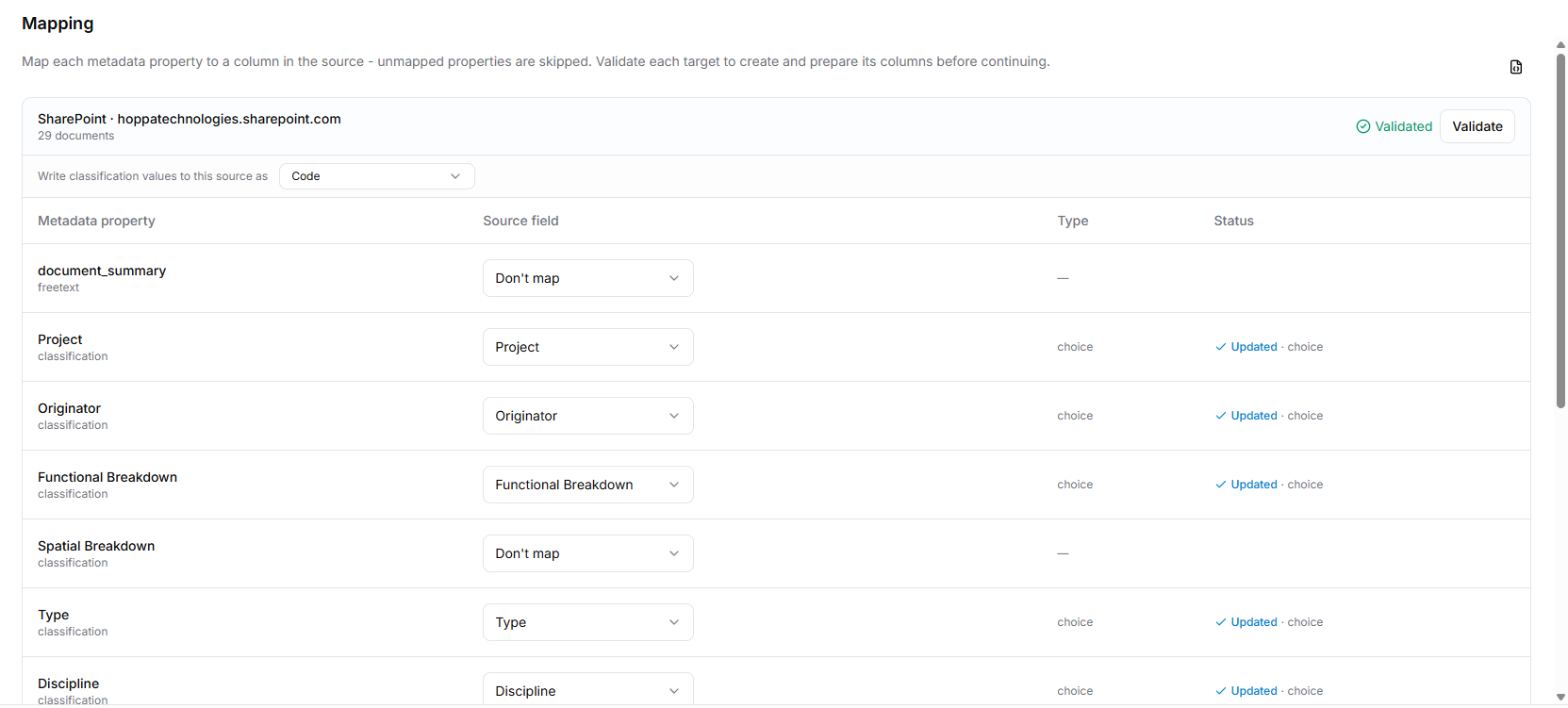
Writeback Mapping step after validation, with each property mapped to a SharePoint column and marked Updated
- Check each row. Hoppa suggests a Source field where a field's name matches. To change it, choose another field, or Don't map.
- To write to a field that does not exist yet, choose Create new field… and enter a name. This is only offered where the source allows new fields, such as SharePoint.
- If Write classification values to this source as appears, choose Code, Description or Code and description. This applies to every classification for that target.
- Select Validate.
Validate checks that each field exists and can hold the values, and on SharePoint it creates or updates the columns as needed. Each row's Status then shows Created, Updated, Unchanged or an error. When the target shows Validated, select Continue.
Changing a mapping clears the validation, so validate again after any change.
Sources that cannot create fields
Some sources, such as Autodesk and ProjectWise, only let Hoppa write to fields that already exist. Add any missing fields in the source system first, then validate again.
4. Review
Hoppa reads the documents' current values and shows exactly what will change, document by document.
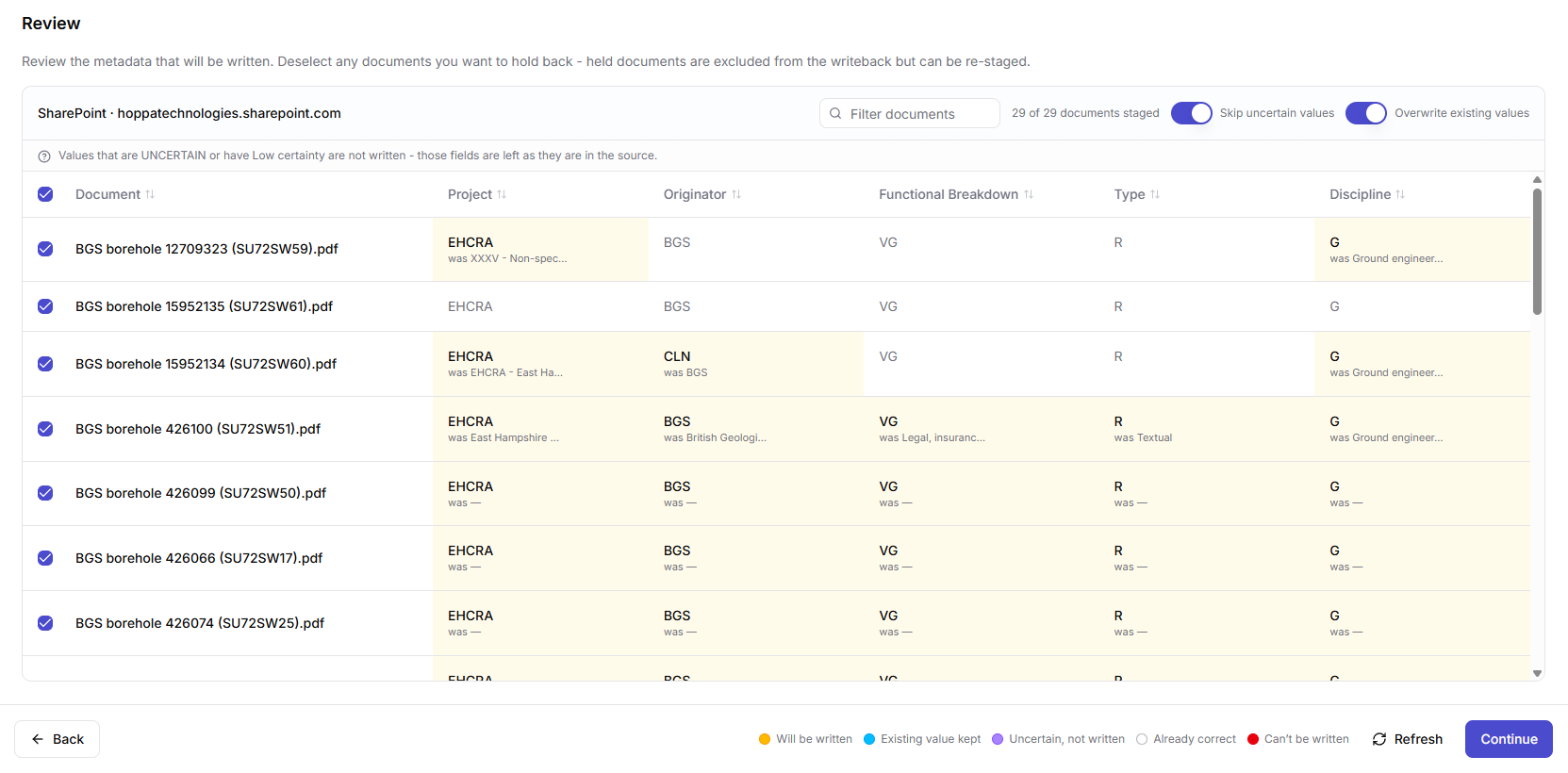
Writeback Review step comparing current and new values, with a colour legend
Each value is coloured to show what will happen to it:
| Colour | Meaning |
|---|---|
| Will be written (amber) | The new value replaces the current one, shown underneath as was …. |
| Existing value kept (blue) | The field already has a value, and Overwrite existing values is off. |
| Uncertain, not written (violet) | The value has Low certainty or is uncertain, and Skip uncertain values is on. |
| Already correct | The source already holds this value. |
| Can't be written (red) | The value cannot be written, for example because it is not an allowed choice in the source. The reason is shown. |
Two settings control what is written:
- Skip uncertain values leaves fields alone where Hoppa's value is uncertain or has Low certainty. It is on by default.
- Overwrite existing values replaces values already in the source. Turn it off to fill in blank fields only.
To hold a document back, untick it. Held documents are left out of this writeback. Documents marked Unavailable or Can't be updated, for example because they have been moved or are in a final state, are left out automatically. Documents with a warning icon, for example because they are checked out, can still be written.
Use Filter documents to find documents, and Refresh to read the current values again.
5. Confirm
Check the summary: how many documents will be updated, how many values will change, and which properties map to which fields.
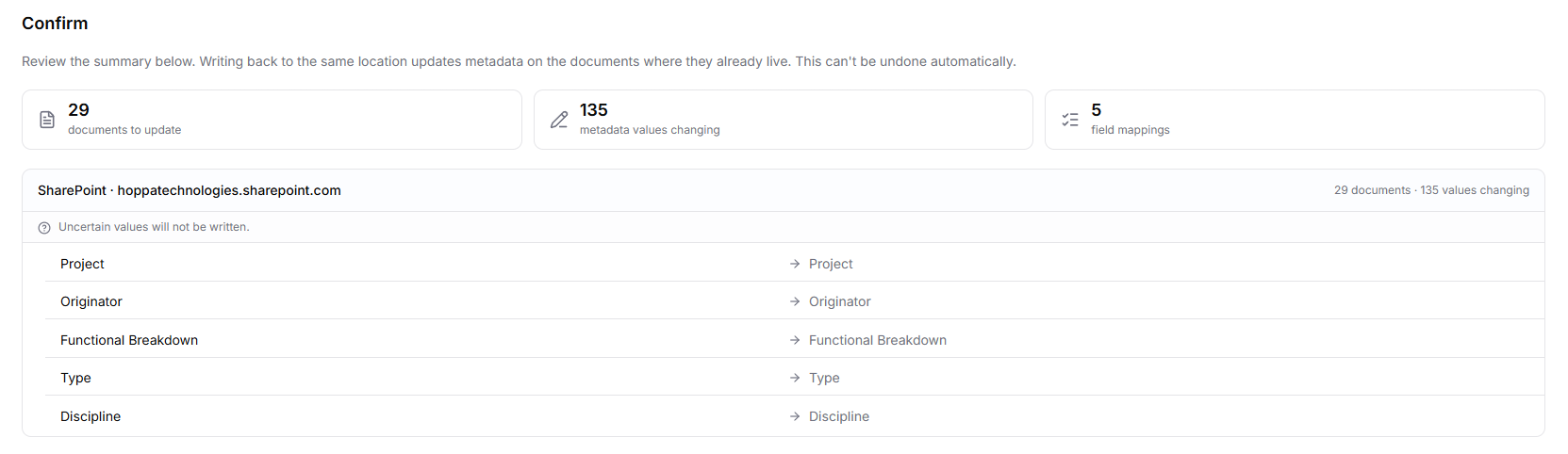
Writeback Confirm step with a summary of documents, values and field mappings
When you are ready, select Confirm & writeback. There is no further confirmation.
For large writebacks, Hoppa warns that the run may take several minutes. Writeback carries on in the background, so you can leave the page.
6. Writeback
The last step shows the writeback's progress: how many documents have been processed, and how many succeeded, failed, were already up to date, or were skipped. Each document is listed with its status and any detail, such as a field that could not be written.
The job's status is Queued, Running, Completed or Failed. If it fails, Hoppa explains whether any documents were already changed, and whether it is safe to run the writeback again.
To come back to this page later, or to share it, select Copy link. Select Back to results to return to the Results page.
Things to know
- Only metadata is written. Files are not renamed or moved.
- Some sources keep versions. Where a source creates a new version of a document on every change, writeback creates a new version of each document it updates. The Confirm step tells you when this applies.
- Running again is safe for unchanged documents. Documents that already hold the right values are reported as Already up to date, and nothing is written to them.
- Changes may show as made by a service account. For sources whose access is managed for your organisation, such as ProjectWise, the source records the change against the connection's account. Hoppa's own audit log records who ran the writeback.