Custom columns let you add information Hoppa does not produce, such as review notes or a reference from another system. They appear in the results with purple headings, and are included when you export.
Before you start
You need to be an Admin, Manager or Member to add columns.
Add a column
- On the Results page, select Add column.
- Enter a name for the column.
- Select Submit.
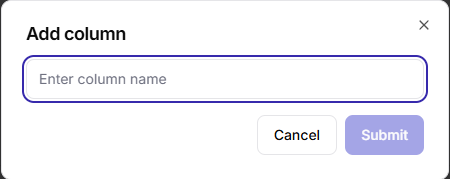
Add column dialog
The new column appears at the end of the table. Custom columns hold free text, and you fill them in by editing cells as usual. See Edit results.
Save a value to keep the column
A custom column is stored with its values. A column you add but never fill in and save will not be there the next time you open the results.
Use custom columns with other tools
- Bulk edit can fill a custom column for many rows at once.
- Clean up data with AI can write into a custom column, and use it as context. See Clean up data with AI.
- Rename can include a custom column in a file code. See Rename files.
Delete a custom column
Open the column's ⋮ menu and select Delete custom column.