Running a session sends its files to Hoppa for analysis against the session's standard. Hoppa queues the files and processes them in the background, so you can leave the page while it works.
Before you start
Run the session
- Open the session. It opens on its Overview page.
- Check the Unpack zip files setting. See Session overview.
- Select Run.
- In the Run session dialog, select Run to confirm.
Hoppa shows Queueing files, do not refresh the page or close the browser while it adds the files to the queue. Stay on the page until it finishes.
When Session queued appears, select View results to open the results, or Return to workspace.
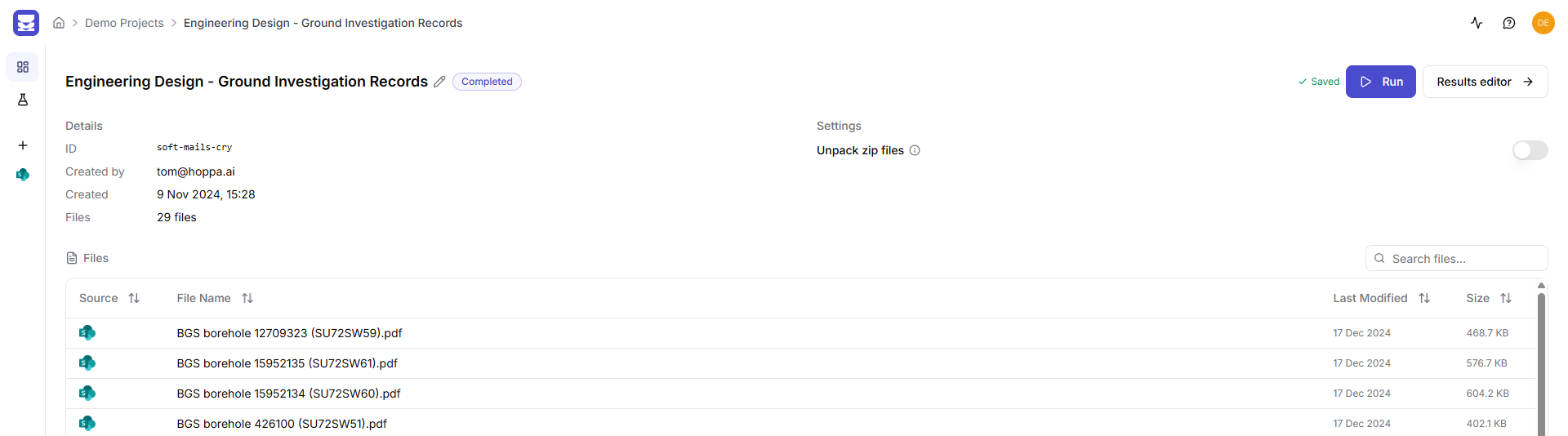
Session Overview page with the Run button
If Run is unavailable
If Run is greyed out, hover over it. A tooltip lists what is missing:
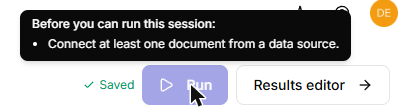
Tooltip on the Run button listing what is needed before the session can run
| Message | What to do |
|---|---|
| You don't have permission to queue sessions in this organization. | Ask your organisation's admin. |
| Connect at least one document from a data source. | Add files. See Connect. |
| Configure a classifier, search term, or tag in the Refinery. | Add to the session's standard in Data Refinery. See Configure. |
After running
- Processing takes a while for large sessions. Results do not update on their own, so select Refresh results on the Results page to see the latest.
- Track progress from the workspace's Sessions tab. See Monitor sessions.
- Analyse individual files again from the Results page. See Re-analyse and delete results.
Run a session again
You can run a session again at any time, for example after adding more files. Hoppa queues every document in the session again, but the standard workflow skips any step that already has results for a document. In practice:
- New files are analysed.
- Files that already have results keep them. They are not analysed again.
To analyse files again from scratch, for example after changing the standard, delete their results and re-analyse them from the Results page. See Re-analyse and delete results.
Custom workflows
Whether a step skips existing results is set in the workflow. A custom workflow may behave differently. See Workflows.