Every session opens on its Overview page. It shows the session's details and settings, and lists every file connected from its data sources.
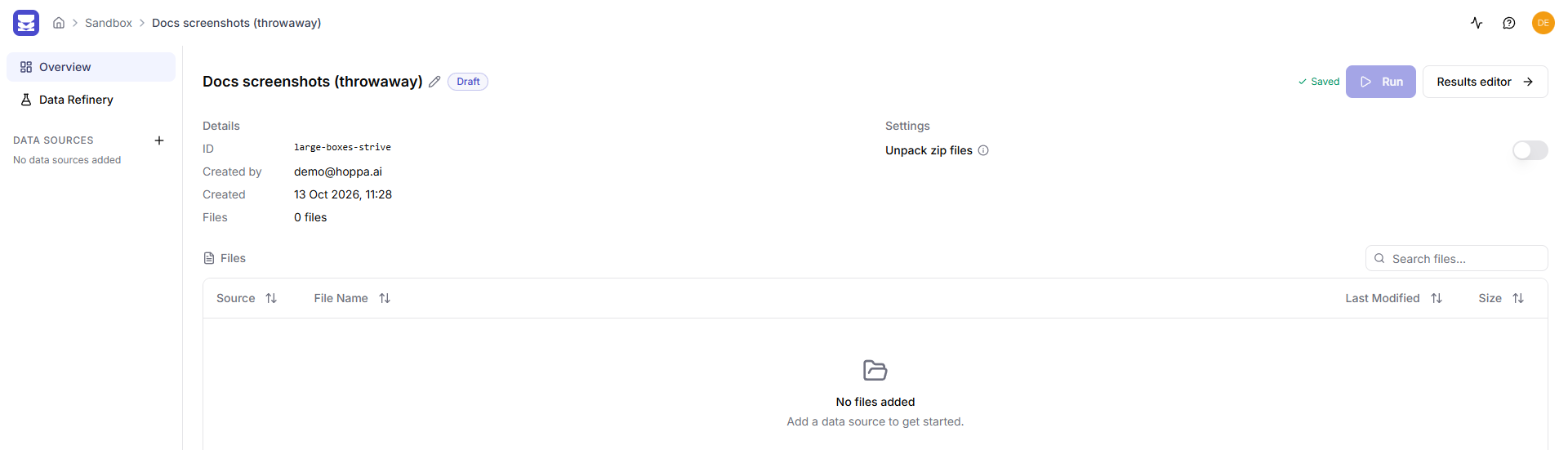
Overview page of a new draft session with no files
The session sidebar
The sidebar on the left holds everything that makes up the session.
| Item | What it does |
|---|---|
| Overview | Opens this page. |
| Data Refinery | Opens the session's own copy of the standard. See Refinery basics. |
| Data sources | Lists the sources you have added. Select one to add or remove its files. Select + to add another source. |
To make more room, select Collapse at the bottom of the sidebar. Hoppa remembers your choice on this device.
Rename the session
Select the session name or the pencil icon next to it, type the new name, and press Enter. Press Escape to cancel.
Details
| Field | Shows |
|---|---|
| ID | The session's three-word ID. |
| Created by | Who created the session. |
| Created | When the session was created. |
| Files | How many files are connected. If you imported a CSV, the number of rows is shown too. |
Settings
Unpack zip files controls what happens to zip files in the session.
- On: Hoppa unzips each zip file and analyses the files inside it individually.
- Off: Hoppa keeps each zip file intact and analyses it as one file. This is the default.
Set this before you run the session.
Files
The Files table lists every file from every data source, with its Source, File Name, Last Modified date and Size.
- Search with the Search files... box.
- Filter by source with the Source button, which appears when the session has more than one source.
- Open a file at its source by selecting its name, where the source allows it.
You cannot remove files from this table. To remove files, open their data source in the sidebar.
Saving
Hoppa saves changes to the session automatically. The status next to Run shows Saving..., Unsaved or Saved.
Run and view results
- Run sends the session's files for analysis. See Run a session.
- Results editor opens the session's results. See Results: table view.