A search field asks Hoppa to find one value in each document, such as a published date, a project reference or a total cost. Each search field becomes a column in the results. See The Refinery.
Before you start
You need permission to edit the standard. See Refinery basics.
Open the Refinery and select the Search tab.
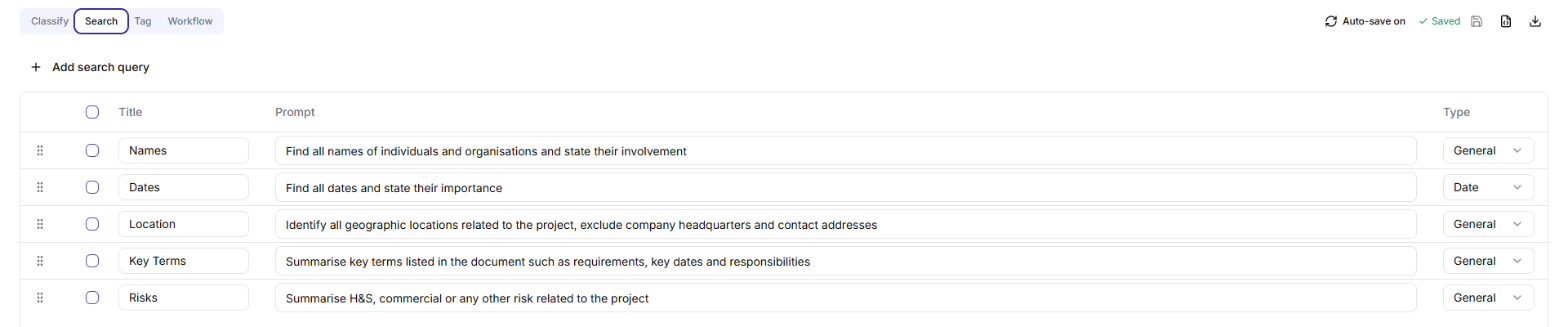
Search tab listing search queries with their title, prompt and type
Add a search field
- Select Add search query. A new row appears.
- Enter a Title. This becomes the column heading in the results, for example Published Date.
- Enter a Prompt that describes what to find, for example Find the date when the document was last published.
- Choose a Type. See Choose a type.
Choose a type
The type tells Hoppa what kind of value to look for and sets the format of the result.
| Type | Returns | Example |
|---|---|---|
| General | Free text, worded as found in the document | Ground investigation report |
| Number | A plain number, without units or thousands separators | 5000, 12.5 |
| Currency | An amount with its currency symbol or code, to two decimal places | £5000.00, USD 5000.00 |
| Date | A date in ISO format, as complete as the document allows | 2024-01-15, 2024-01, 2024 |
| Date Range | Two dates joined by to | 2024-01-15 to 2024-02-28 |
| Percentage | A plain number, without the % sign | 12.5 |
| Boolean | true or false |
true |
If Hoppa cannot find a value, the result is left empty. Values that do not match their field's type are flagged as Invalid in the results. See Search field types for the full rules, and Analysis and certainty.
Reorder search fields
Drag a row by its handle, or hover over it and use the up and down arrows.
Delete search fields
- Select the checkboxes of the rows to delete.
- Select Delete.
- Confirm by selecting Delete in the dialog.