The Results page shows what Hoppa found in each document. In table view, each row is a document and each column is part of your standard.
To open the results, select View results on a session in the workspace, or Results editor on the session's Overview page.
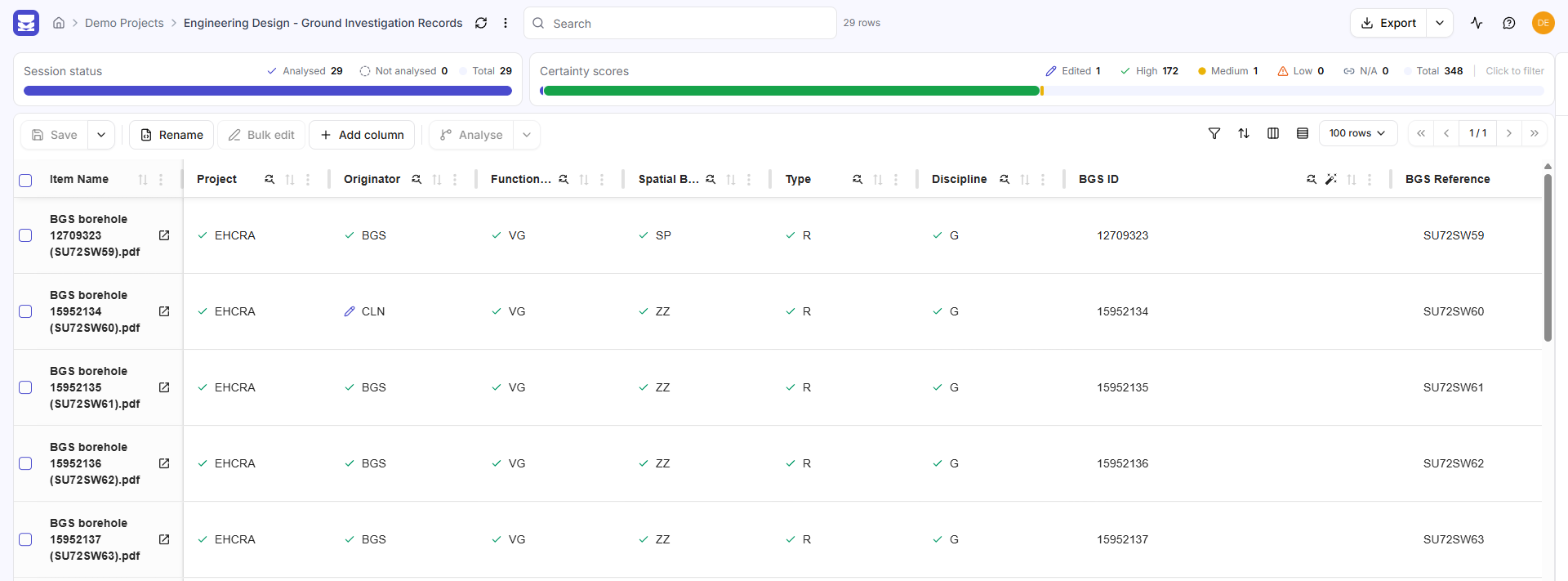
Results page with session status, certainty scores and the results table
Columns
Columns appear in this order:
| Column | Shows |
|---|---|
| Item Name | The document's name. Select it to open the document's details. See Document side panel. |
| Coded File Name | A generated file code, once you have used Rename. See Rename files. |
| One per classification | The code Hoppa assigned. Hover over a code to see its description. |
| One per tag column | The tags Hoppa applied. |
| One per search field | The value Hoppa found. |
| Custom columns | Columns you have added yourself, with purple headings. See Add columns. |
A hidden Description column holds Hoppa's summary of each document. Show it from Show/hide columns.
Certainty icons
Each value has an icon showing where it came from and how confident Hoppa is. Hover over the icon to see Hoppa's explanation of the value.
| Icon | Meaning |
|---|---|
| ✓ green | High certainty |
| ● amber | Medium certainty |
| ⚠ orange | Low certainty |
| Link | Read directly from the document's source system |
| Pencil | Edited by a person |
| Sparkle, purple | Changed by AI clean-up. See Clean up data with AI. |
Values that fail format validation have a red tint and border. See Analysis and certainty.
Search
Use the Search box at the top of the page to find rows. It matches any column's value, including document names, classification codes, search field values, tags and the hidden description. The number of matching rows is shown beside the box.
Filter
There are three ways to narrow the table:
- Status bars. Select a segment of the Session status or Certainty scores bar, such as Low, to show only those rows. Select it again, or Clear filter, to undo it.
- Column filters. Select the funnel icon, Show/hide filters, to show a filter under each column heading. Classification and tag columns offer a list to pick from. Number and date columns offer a range.
- Search, as above.
While any filter is active, a chip such as 2 filters applied appears at the top of the page. Select it to clear every filter and the search.
Arrange columns
The icons on the right of the toolbar control the table's layout.
| Icon | What it does |
|---|---|
| Show/hide filters (funnel) | Shows or hides the filter row. |
| Reorder columns (arrows) | Opens Column order, where you drag columns into a new order. Reset restores the default. |
| Show/hide columns | Opens a panel to show, hide and pin columns, grouped by type. |
| Toggle density | Switches between comfortable, compact and spacious rows. Compact shows one line per cell, with the full text on hover. |
| Rows | Sets how many rows show per page. |
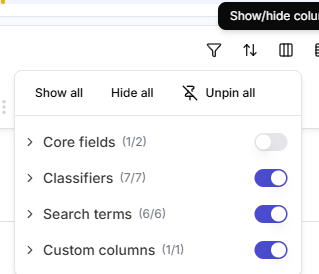
Show/hide columns panel with switches for each group of columns
To pin a column so it stays in view while you scroll sideways, use the pin button next to it in Show/hide columns.
Save and share a view
The table's layout, filters, sorting and search are kept in the page's web address. Copy the address to share exactly what you are looking at.
To make the current view the default for everyone who opens the session, select the ⋮ menu next to the session name, then Save current view as default. This needs permission to configure the session. A shared link that includes its own view still opens with that view.
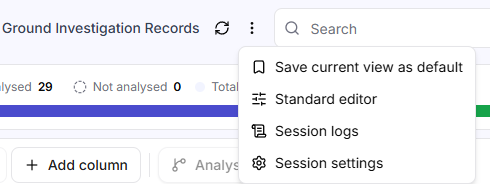
The menu next to the session name, with Save current view as default, Standard editor, Session logs and Session settings
The same menu has Standard editor, a JSON editor for the session's standard, Session logs and Session settings.
Refresh results
Results do not update on their own while you have the page open. Select Refresh results, the circular arrow next to the session name, to load the latest. If you have unsaved edits, Hoppa asks you to confirm first, because refreshing discards them.