Import a CSV file to analyse rows of data rather than documents. Hoppa extracts each row of the file and analyses it individually, so every row gets its own results.
When to use it
Use CSV import when your information is already in a table and you want to classify or enrich each line, for example a schedule of line items, an asset register or an export from another system.
Needs a custom workflow
Rows are a different kind of data from documents, so the session needs a workflow set up to handle them. The standard workflow will not analyse CSV rows. Raise a ticket through the support portal to have a suitable workflow set up for your workspace. See Workflows.
Before you start
You need permission to connect data sources. If the option is unavailable, contact your organisation's admin.
Prepare the CSV file
- Save it as CSV, encoded as UTF-8.
- Put column headings in the first row. Hoppa uses them as the column names.
- Any columns are allowed. Hoppa does not require particular headings.
Import the CSV
- Open the session.
- In the sidebar, select + next to Data sources.
- Select Import CSV, then select Continue.
- Drag a CSV file onto the upload area, or select browse to choose one.
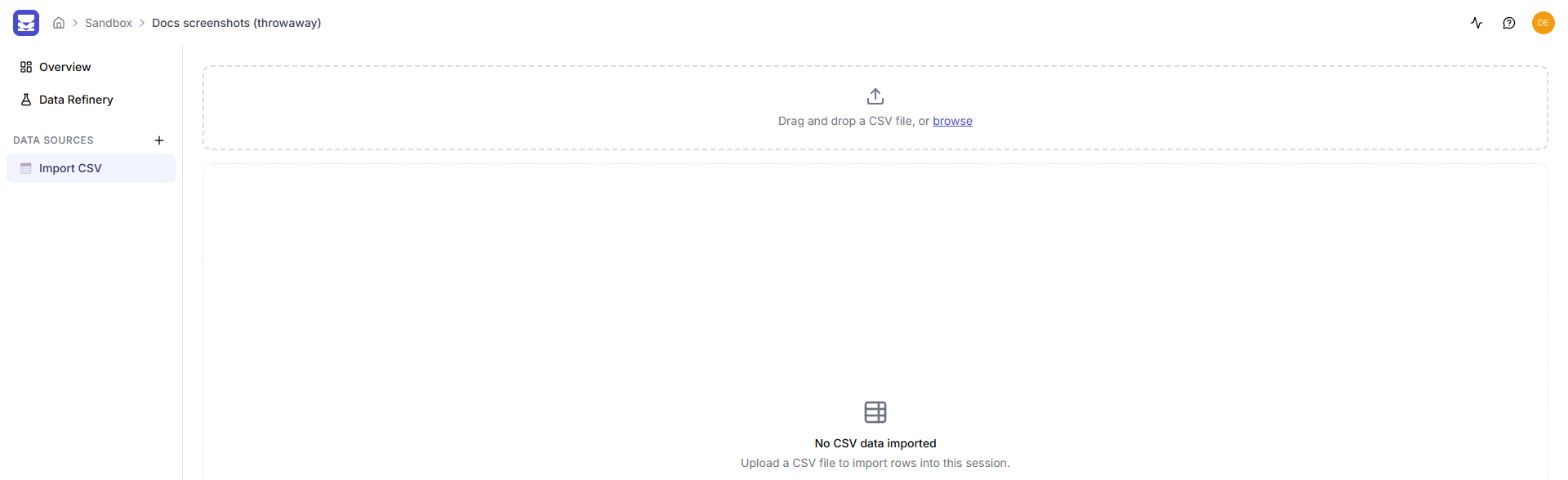
Import CSV page with an upload area and no data imported yet
Hoppa shows Processing CSV... while it reads the file. When it finishes, it shows how many rows it imported and a preview of the first rows.
You can import more than one CSV file into the same session. The preview then lists each file with its row count.
On the session's Overview page, imported rows are counted under Files, for example 0 files, 48 rows. They are not listed in the Files table.
Remove imported data
- Open the Import CSV source in the sidebar.
- Select Clear all to remove every imported row. If you imported several files, select the files to remove and then select Delete.
- Confirm by selecting Delete.
Removing imported data cannot be undone.