The document side panel shows everything Hoppa knows about one document beyond the values in your standard.
Open the panel
- In table view, select a document's name in the Item Name column.
- In detail view, select Details.
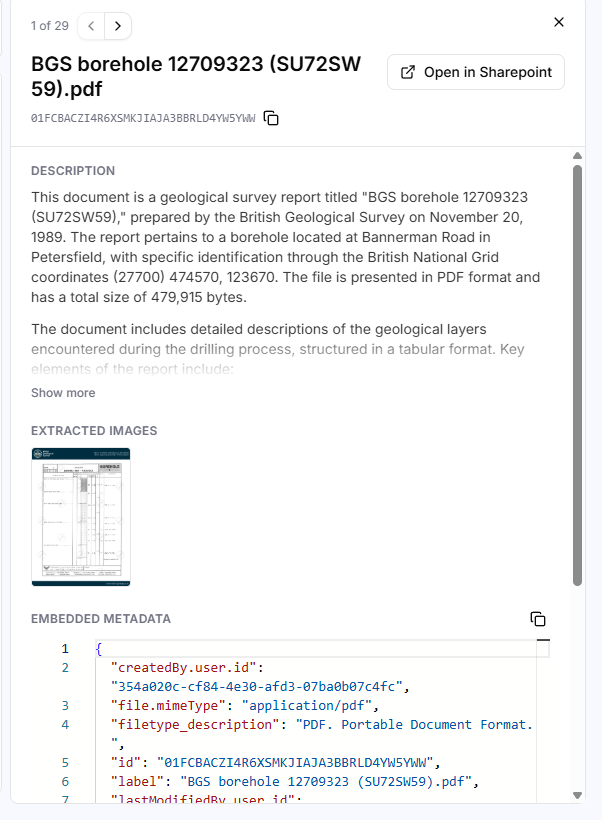
Document side panel showing a description, extracted image and embedded metadata
The panel opens on the right. Use the arrows at the top to move to the previous or next document, and the X to close it.
At the top of the panel you can copy the document's ID, and open the original file with Open in followed by the source name, or Open file for uploaded files.
Description
A summary Hoppa wrote of the document's content. Select Show more to read all of it.
In table view, you can also hover over a document's name to see the start of its description.
Extracted images
Images Hoppa extracted from the document, such as page previews. Select an image to open it full size, where you can zoom, rotate and move between images.
Embedded metadata
The metadata stored in the file or provided by its source system, such as author, file type and modified dates. It is shown as Hoppa received it, without any checks. Select the copy icon to copy it.
Related documents
Beta
Related documents is a beta feature and is only shown for organisations where it is enabled.
Hoppa looks across all your organisation's workspaces for documents that match this one.
- Matching files are exact or close copies. Each is labelled Exact match or Close match.
- Related files have similar content or purpose, but are not copies.
Each match shows a score and the session it belongs to. Select the open icon to view the file, or the jump icon to find it in the table or open its session's results.