Some documents contain repeated rows of data, such as the lines on an invoice or a bill of quantities. Hoppa extracts these as line items, each with its own values. Detail view shows one document at a time, with its document-level fields at the top and its line items below.
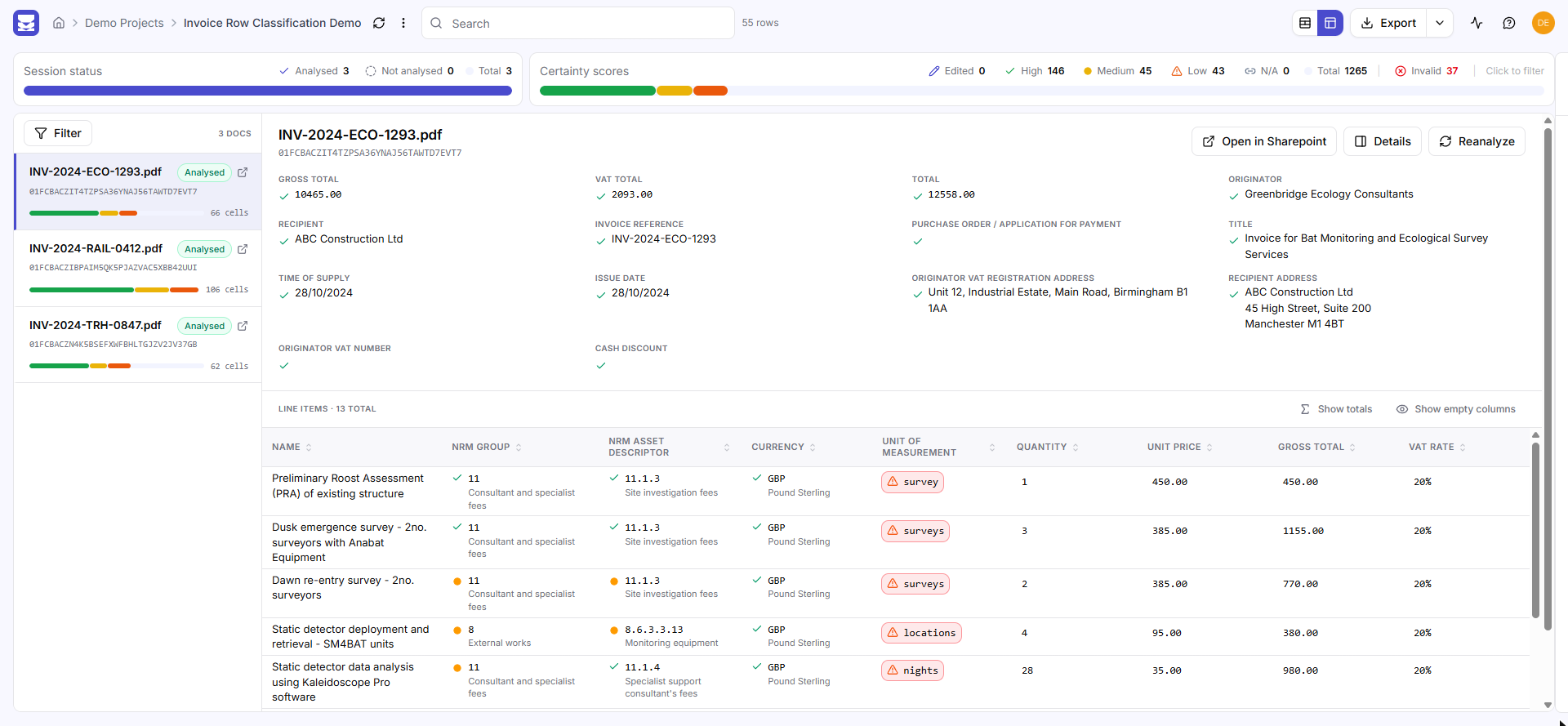
Detail view showing a list of documents, one invoice's fields and its line items
Switch to detail view
Detail view is available when a session's results include line items. Sessions like this open in detail view automatically.
To switch between views, use the two icons to the left of Export: Table view and Detail view.
Choose a document
The list on the left shows every document. Each card shows the document's name, whether it has been Analysed, and a bar summarising its certainty scores. Hover over the bar to see the counts for document fields and line items.
Select a card to open that document. The number of documents is shown at the top of the list.
Review the document
The main pane shows:
- The document's fields, such as totals, dates and references, each with its certainty icon.
- Line items, in a table with a column for each field. Select Show totals to add up number and currency columns, and Show empty columns to include columns with no values.
Buttons at the top of the pane open the file at its source, open its Details panel, and Reanalyze the document. See Document side panel and Re-analyse and delete results.
Edit values
Select a field or a line item cell to edit it. Right-click a value and select Clear edits to undo your change.
When you have unsaved changes, a bar appears with Save and Discard. See Edit results.
Filter documents
Select Filter above the document list to filter by any column. Classification and tag columns offer a list to pick from, number and date columns take a range, and text columns match what you type. Filters are shared with table view.