Once a session is running, you can follow its progress from the workspace, and check its logs if something goes wrong.
Session status
The workspace's Sessions tab shows a status for every session, and five cards with counts across the workspace: Total, Draft, Processing, Completed and Error.
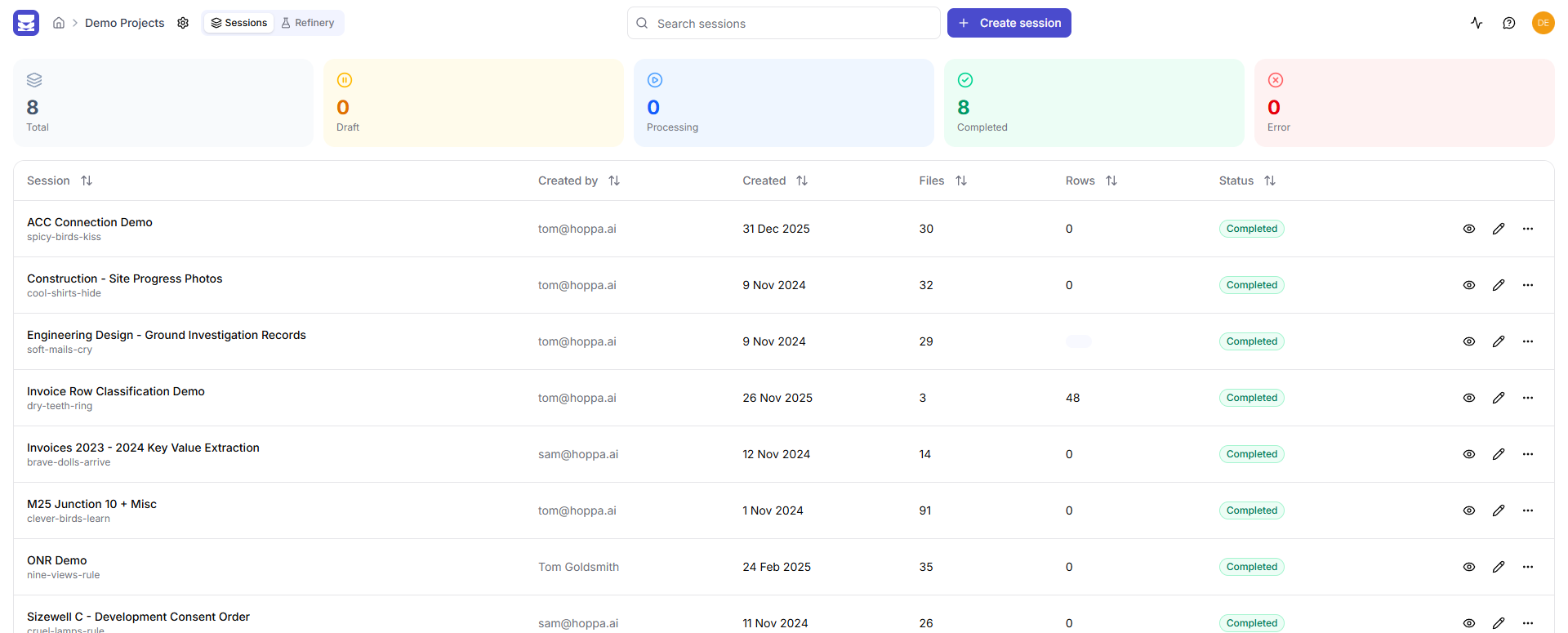
Workspace Sessions tab with status cards and the session table
| Status | Meaning |
|---|---|
| Draft | The session has been created but not run yet. |
| Processing | Hoppa is analysing the session's files. |
| Completed | Analysis has finished. |
| Failed or Error | Something went wrong. Check the session's logs. |
The table can be searched with Search sessions, which matches the session name, ID, creator and status. Every column can be sorted.
Refresh a session
Statuses and counts update when you reload the page. To refresh one session without reloading, select More actions (the … icon) on its row, then Refresh.
Session details
Select a session's row to open its details panel. It shows the session's status, creator, creation date and file count, the data sources it uses, and every file with its own status.
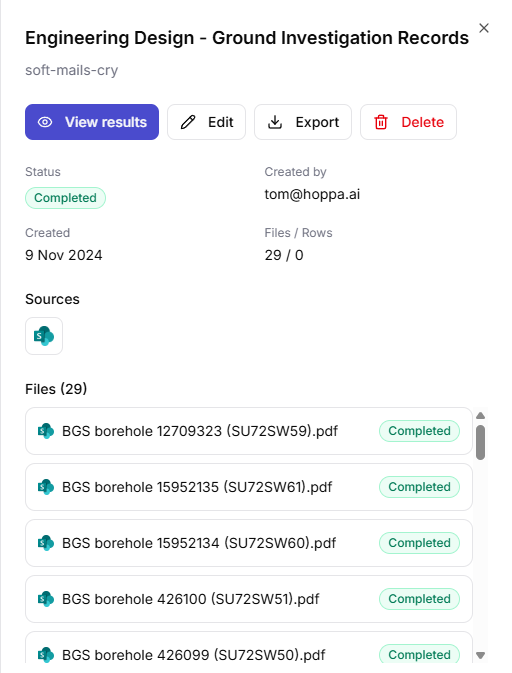
Session details panel with status, sources and a list of files with their statuses
From the panel you can View results, Edit the session, Export its results or Delete it.
Session logs
Session logs record what happened while the session's files were processed. They are the first place to look when files fail.
- Open the session's results.
- Select the ⋮ menu next to the session name, then Session logs.
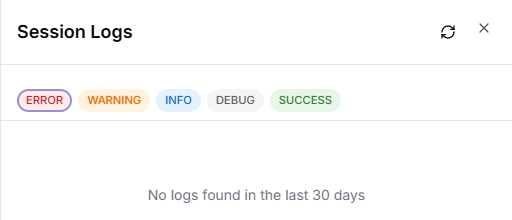
Session Logs panel with level filters
The panel shows the last 30 days of entries, newest first. Select Load more to see older entries.
To focus on one kind of entry, select its level: error, warning, info, debug or success. Select more levels to add them, and select Clear to show everything again.
For logs across a whole workspace, see Workspace settings.