The Refinery is where you define your information standard: the structured information you want Hoppa to produce for every document. Hoppa reads each document and fills in the standard for it, and the results page has a column for each part.
You find the Refinery in two places:
- On a workspace's Refinery tab, where you set the standard that new sessions start from.
- In a session's sidebar as Data Refinery, where you adjust that session's own copy.
See How standards and workflows pass from workspace to session.
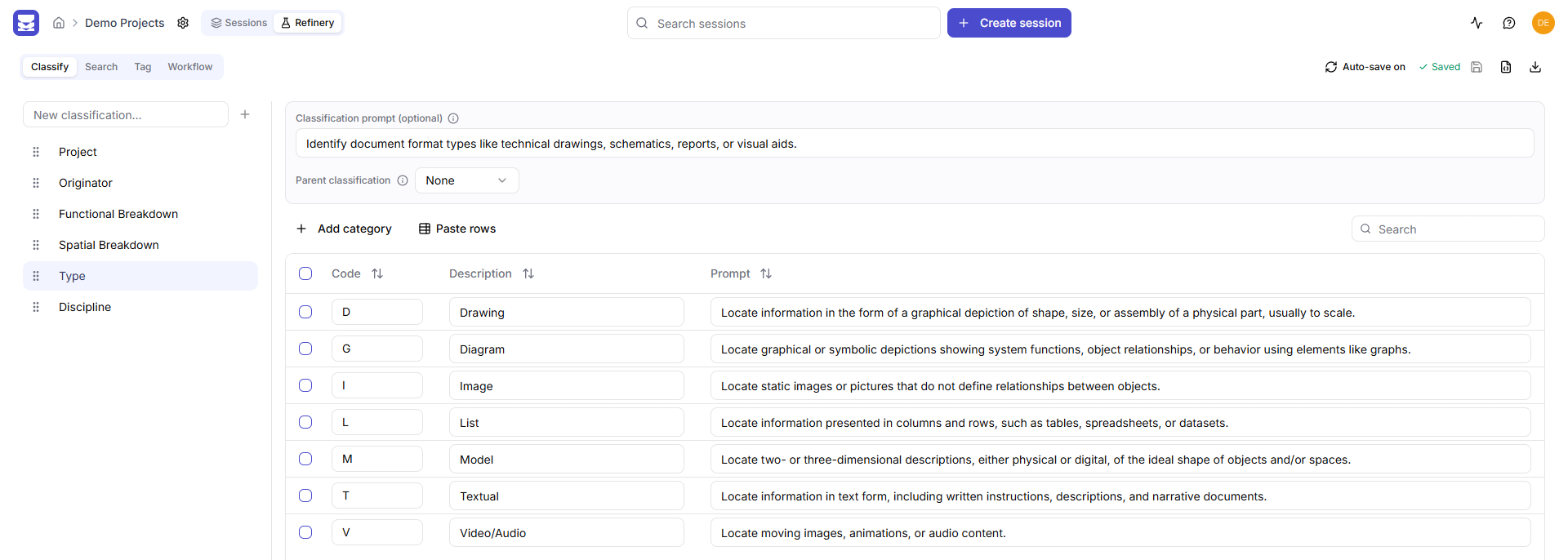
Refinery Classify tab showing the categories of a classification
The parts of a standard
A standard has three kinds of item. Each has its own tab in the Refinery.
| Tab | Item | What Hoppa produces | Example |
|---|---|---|---|
| Classify | Classifications | A code from a list you define | Document type: DR (Drawing), SP (Specification) |
| Search | Search fields | A value found in the document | Published date, project reference, total cost |
| Tag | Tag columns | One or more tags from a list you define | Discipline: Civil, Structural |
A fourth tab, Workflow, shows the processing steps that produce these results. See Workflows.
Classifications
A classification is a list of categories, each with a Code and a Description. Hoppa assigns each document a code from the list, for example a document type or a Uniclass code.
- Codes must be unique within a classification. The Refinery highlights duplicates and will not save until they are fixed.
- Classifications can be nested. Setting a Parent classification makes the categories depend on the parent's codes, so you can build hierarchies such as Uniclass groups and sub-groups.
- Prompts are optional. A classification prompt, or a prompt on an individual category, gives the AI extra guidance in plain language.
Search fields
A search field asks Hoppa to find a specific value in each document. Each field has a Title, a Prompt describing what to look for, such as "Find the date when the document was last published", and a Type.
The type controls the format of the result: General, Number, Currency, Date Range, Date, Percentage or Boolean. See Search field types and Define search fields.
Tags
A tag column is a list of tags, each with a Tag name, a Description and an optional Prompt. Hoppa applies the tags that fit each document. Tag names must be unique within a column, and the Refinery offers suggested tags to start from.
See Define tags.
Saving and sharing a standard
- Auto-save saves your changes a few seconds after you stop typing. You can turn it off and select Save instead.
- Download standard (Excel) exports the whole standard as a spreadsheet, which is useful for review and sign-off.
- The Advanced JSON editor shows the standard as JSON for bulk changes.
See Refinery basics.