The organisation landing page, header bar and moving between levels
The Hoppa web app has three levels: your organisation, its workspaces, and the sessions inside each workspace. This page shows where each level lives and how to move between them.
Organisation landing page
After you sign in, Hoppa opens your organisation's landing page. It greets you by name and lists Your workspaces as cards.
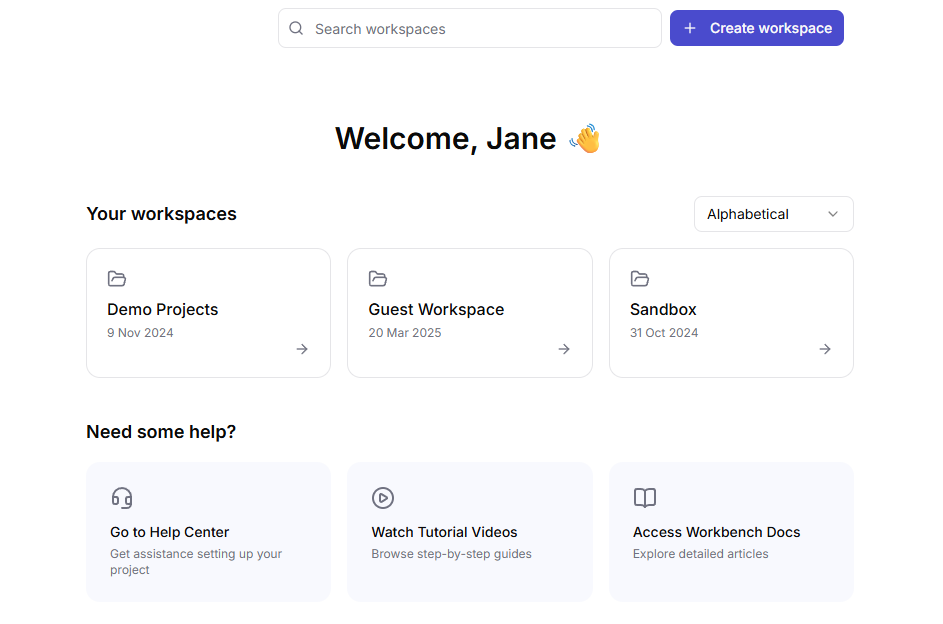
Organisation landing page with workspace cards and help links
From here you can:
- Open a workspace by selecting its card. Each card shows the workspace name and the date it was last modified.
- Sort workspaces with the dropdown next to Your workspaces. Choose Alphabetical or Last modified.
- Search workspaces with the Search workspaces box at the top of the page.
- Create a workspace with Create workspace. See Create a workspace.
- Get help from the Need some help? cards, which link to the Help Center, tutorial videos and the Workbench Docs.
Organisation admins also see a gear icon, Organisation Settings, in the header. See Organisation settings.
Switch organisation
If you belong to more than one organisation, use the organisation switcher in the top-left corner of the landing page.
- Select the organisation name.
- Under Organisations, select the organisation you want to open. A tick marks the current one.
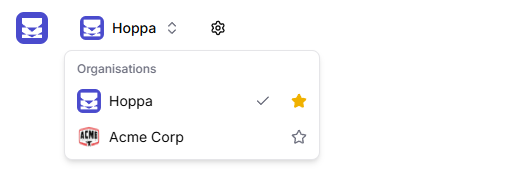
Organisation switcher open, with a star marking the default organisation
To choose which organisation opens when you sign in, select the star next to it. The star turns yellow and its tooltip reads Default org on login. Only one organisation can be the default. This setting is saved in your browser, so set it again on each device you use.
Note
The organisation switcher only appears on the organisation landing page. To switch from deeper in the app, go back to the landing page first using the breadcrumbs.
Workspace page
Opening a workspace shows its sessions. The page has two tabs:
- Sessions lists every session in the workspace, with counts of sessions by status. See Monitor sessions.
- Refinery holds the workspace's information standard and workflow. See The Refinery.
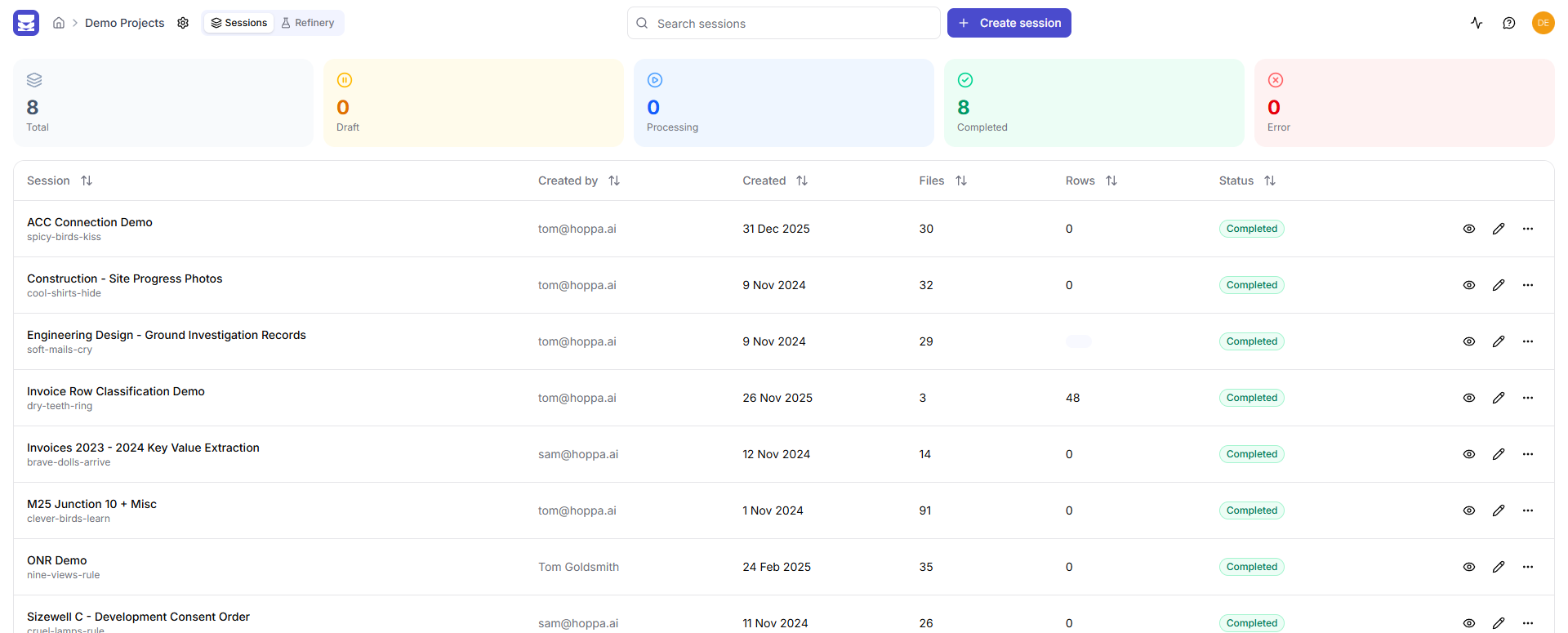
Workspace Sessions tab with status cards and the session table
Select a session row to open a details panel with its status, sources and files. From the row or the panel you can view results, edit the session, export it, or delete it, depending on your permissions.
Breadcrumbs
Inside a workspace or session, breadcrumbs at the top left show where you are.
- Select the home icon to return to your organisation's landing page.
- Select the workspace name to return to the workspace.

Breadcrumbs showing the home icon, workspace and session
Header bar
The right-hand side of the header bar is the same on every page.
| Control | What it does |
|---|---|
| Status (activity icon) | Opens the Hoppa service status page in a new tab. |
| Help Center (question-mark icon) | Opens the Hoppa Help Center in a new tab. |
| Your avatar | Shows your name and email, with Account Settings and Logout. |
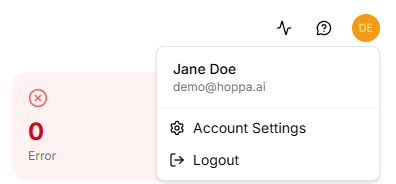
Account menu with Account Settings and Logout
See Account settings for what you can change in your account.