Sign in, accept an invitation, or activate a Microsoft Marketplace subscription
You sign in to the Hoppa web app at app.hoppa.ai. Sign-in is handled by a secure hosted sign-in page, so the app itself never sees your password.
Sign in
- Go to app.hoppa.ai. The app shows Redirecting to sign in... and opens the sign-in page.
- Sign in with your email address and password, or with your organisation's Microsoft account through Microsoft Entra single sign-on (SSO).
- Hoppa shows Signing you in... and then opens your organisation's landing page.
If you belong to more than one organisation, Hoppa opens your default organisation. You can choose which organisation that is from the organisation switcher. See Switch organisation.
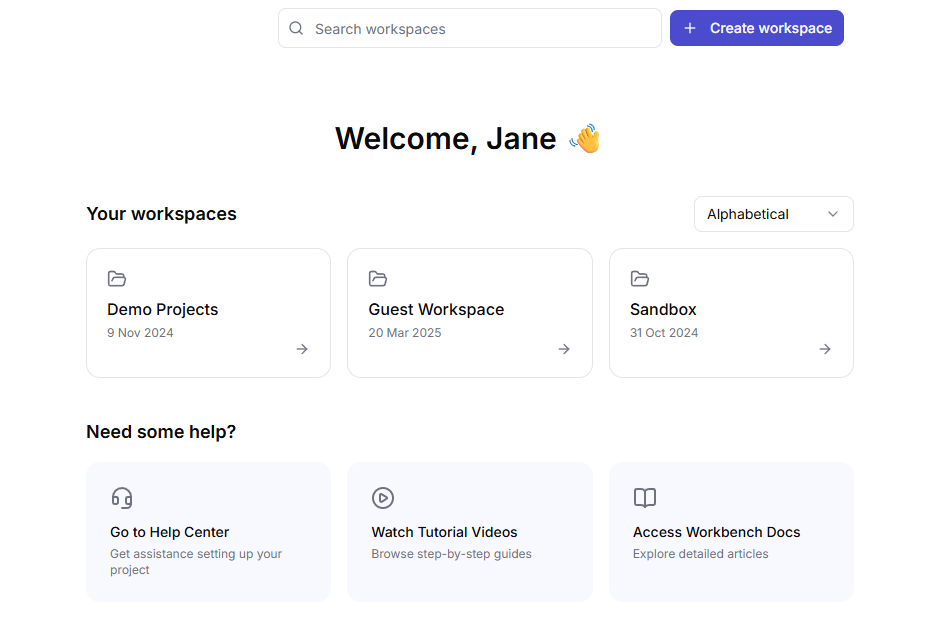
The organisation landing page shown after signing in
Opening a shared link
If you open a link to a specific page while signed out, Hoppa asks you to sign in and then takes you straight to that page.
Accept an invitation
The Hoppa team adds people to organisations. When you are invited, you receive a link by email.
- Open the invitation link. Hoppa shows Joining {organisation}... or Accepting invitation....
- Sign in when the sign-in page opens.
- Hoppa opens the landing page of the organisation you were invited to.
To ask for someone to be added to your organisation, raise a ticket through the support portal.
If your account is not part of an organisation yet
You can create a Hoppa account before you belong to an organisation. When you sign in, Hoppa shows an empty landing page with no workspaces, and a Welcome to Hoppa message.
To get started, contact the Hoppa team. They can set you up with a trial or add you to your organisation. Select Contact sales in the message, or raise a ticket through the support portal.
Activate a Microsoft Marketplace subscription
If your organisation bought Hoppa through Microsoft Marketplace, you activate the subscription from the Marketplace listing.
- In Microsoft Marketplace, open your Hoppa subscription and select Configure account.
- Sign in with your Microsoft account when asked.
- Hoppa activates the subscription and shows Thanks - we're setting up your workspace, with a reference ID.
The Hoppa team then sets up your organisation and emails you within one business day with sign-in instructions. If you open the activation link again before setup is finished, Hoppa shows Your workspace is still being set up.
| Message | What it means | What to do |
|---|---|---|
| Invalid activation link | The page was not opened from Microsoft Marketplace. | Return to the Marketplace listing and select Configure account again. |
| Your activation link has expired | The link from Microsoft is only valid for about an hour. | Return to Microsoft Marketplace and select Configure account again. |
| Microsoft is having trouble responding right now | Microsoft's service did not respond. | Try again in a few minutes. |
For any other problem, email support@hoppa.ai and include the reference ID if one is shown.
Signing out
To sign out, select your avatar in the top-right corner, then select Logout.
Hoppa also signs you out automatically after 60 minutes without activity in any open Hoppa tab. There is no warning before this happens. When you sign back in, Hoppa returns you to the page you were on, so save any edits before leaving the app idle.
Troubleshooting
| Message | What to do |
|---|---|
| Authentication failed or Authentication error | Select Try again. If it keeps happening, raise a ticket through the support portal. |
| Access Denied | You are signed in, but not as a member of the organisation in the link. Select Sign in with a different account, or ask the Hoppa team to add you. |