Before you start
Workspace settings are for Admins and Managers. Other roles do not see the settings icon. The Usage tab is only shown to Admins.
Open workspace settings
- Open the workspace.
- Select the gear icon, Settings, next to the workspace name.
The settings have three tabs down the left: General, Logs and Usage.
Rename a workspace
- On the General tab, change the Workspace name.
- Select Save changes.
Only the name people see changes. The workspace ID stays the same, so every link to the workspace and its sessions keeps working.
Delete a workspace
Danger
Deleting a workspace permanently deletes all of its sessions, files, results and settings. It cannot be undone.
- On the General tab, under Danger Zone, select Delete this workspace.
- Type the workspace's name exactly as shown, to confirm.
- Select Delete workspace.
Hoppa deletes the workspace and returns you to your organisation's landing page.
Logs
The Logs tab shows processing logs for every session in the workspace. Use it to investigate failures across several sessions at once. For one session's logs, see Monitor sessions.
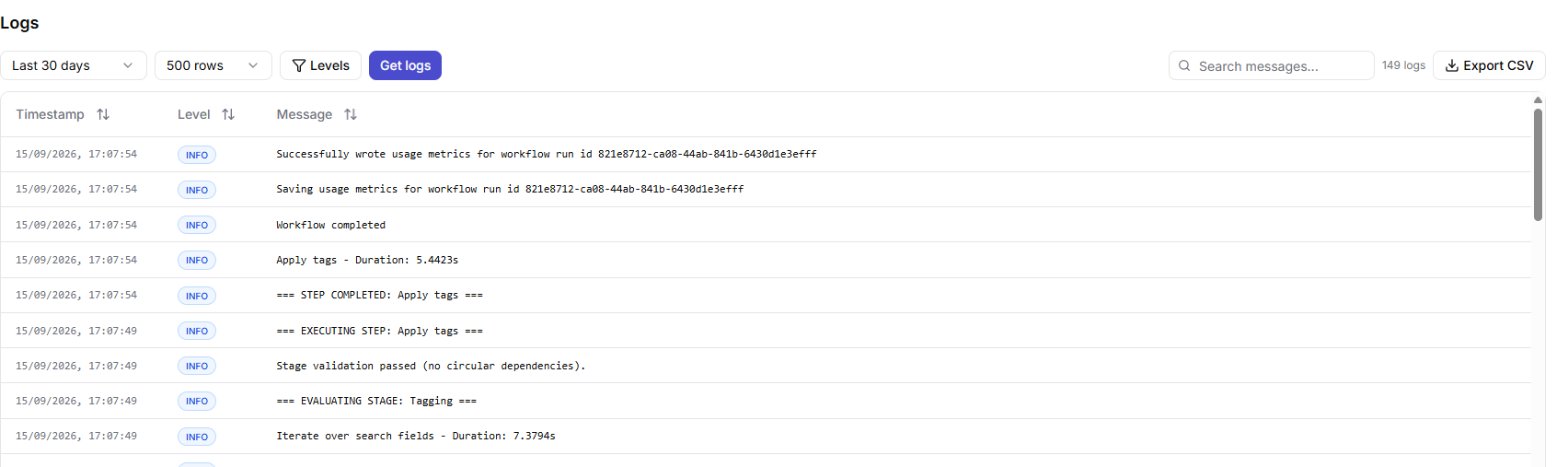
Workspace Logs tab with time range, level filter and log entries
- Choose a time range, a row limit and which Levels to include: Error, Warning, Info and Debug.
- Select Get logs. Changes to these options only apply when you select Get logs again.
- Search the messages with Search messages....
Select Export CSV to download the logs shown.
Usage
The Usage tab shows the tokens used by this workspace. It works the same way as the organisation's Usage tab, filtered to this workspace. See Organisation settings and Tokens.