A tag column is a list of tags. Unlike a classification, which gives each document one code, a tag column can give a document several tags, or none. For example, a Work package column might tag one document with both Procurement and Contract. See The Refinery.
Before you start
You need permission to edit the standard. See Refinery basics.
Open the Refinery and select the Tag tab. Tag columns are listed on the left. Select one to see its tags on the right.
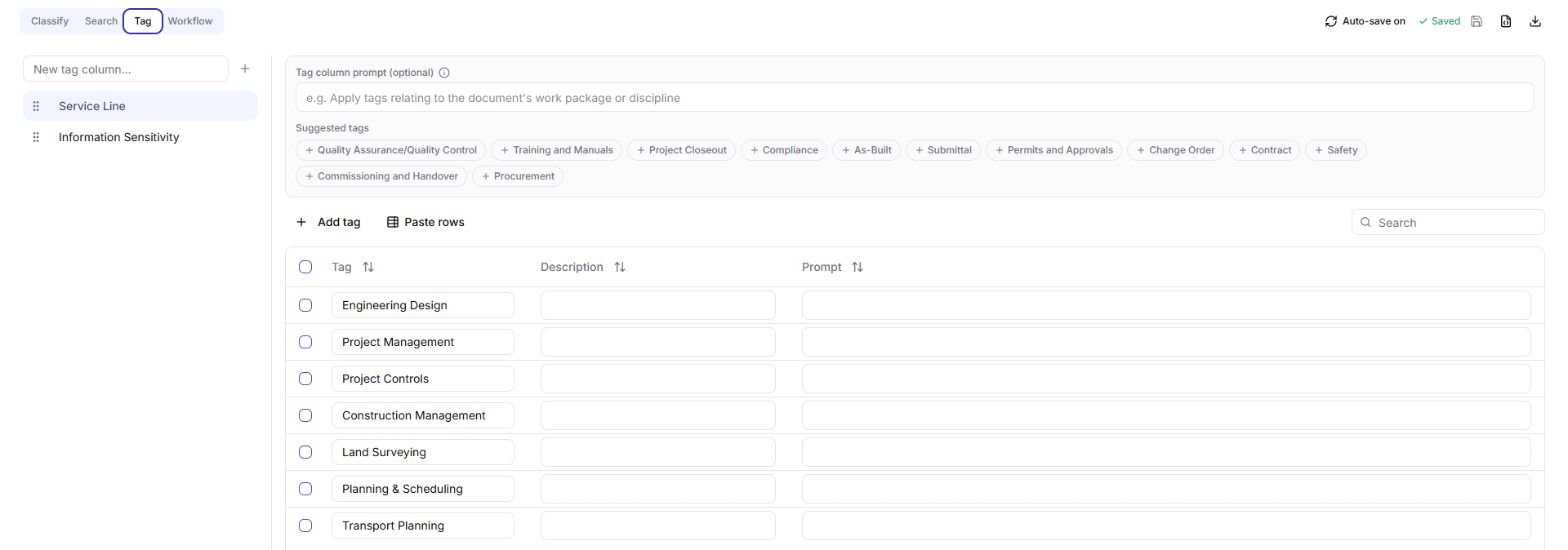
Tag tab with a tag column selected, suggested tags and the tag table
Add a tag column
- In the New tag column... box, type a name.
- Press Enter, or select +.
Tag column names must be unique. To rename a column, double-click its name, or hover over it and select the pencil icon. To delete one, hover over it and select the X, then confirm. Deleting a column removes all its tags and cannot be undone.
Add tags
- Select the tag column.
- Select Add tag. A new empty row appears.
- Fill in the row:
- Tag: the tag name, which appears in the results.
- Description: what the tag means.
- Prompt (optional): extra guidance for the AI on when to apply this tag.
Press Enter in a Tag cell to add another row straight away.
Tag names should be unique within a column. Duplicates get an amber border as a warning.
To delete tags, select their checkboxes and then select Delete. The tags are removed straight away, without a confirmation.
Use suggested tags
Under Suggested tags, select a suggestion to add it to the column. The suggestions cover common construction document topics, such as Compliance, Safety, As-Built and Commissioning and Handover. A suggestion disappears once the column contains a tag with that name.
Guide the AI with a tag column prompt
The Tag column prompt (optional) box applies to the whole column. Use it to tell Hoppa what content to focus on when applying the tags, for example Apply tags relating to the document's work package or discipline.
Paste tags from Excel
- In your spreadsheet, arrange the columns in this order: Tag, Description, Prompt. The Prompt column is optional.
- Copy the rows, without the header row.
- In the Refinery, select the tag column and check that the toolbar shows Paste rows.
- Paste with Ctrl+V.
Hoppa adds a tag for each row and tells you how many were added. Rows without a tag name are skipped.