Rename builds a file code for each document from its classification codes, such as EHCRA-BGS-VG-SP-R-G-000001. Use it to apply a document numbering convention, such as one based on ISO 19650.
Before you start
- You need to be an Admin, Manager or Member to rename files.
- Check the classification values first. File codes are built from whatever the classification columns contain.
Generate file codes
- On the Results page, select Rename.
- Set up the code. See Simple mode and Advanced mode.
- Check the Preview, which shows the code for the first row.
- Select Rename.
Hoppa adds a Coded File Name column to the table, with a code for every row.
Renaming does not rename the files in their source system. The codes are included when you export:
- Export to CSV includes the Coded File Name column. See Export to CSV.
- Export files names each file in the zip by its code. See Export files.
Export straight after renaming
File codes are not saved with the session. They are lost when you refresh or leave the Results page, so export before you move on. You can generate them again at any time.
Simple mode
Simple mode joins the row's classification codes with a separator, then adds a sequence number. To control the order of the parts, use advanced mode.
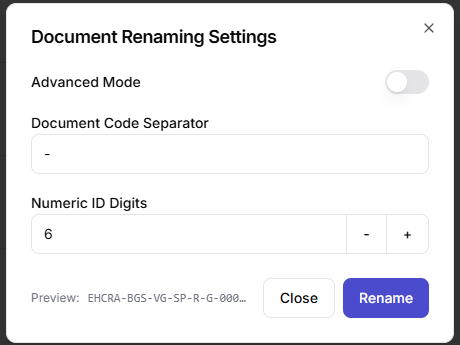
Document Renaming Settings in simple mode, with a separator and number of digits
- Document Code Separator goes between each part. The default is a hyphen.
- Numeric ID Digits sets the length of the sequence number. The default is 6, giving numbers like
000001.
Advanced mode
Advanced mode lets you choose exactly which values make up the code, and in what order. Turn on Advanced Mode, then edit the Naming Syntax.
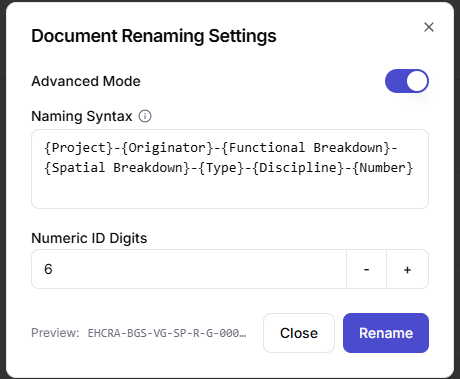
Document Renaming Settings in advanced mode, with a naming syntax made of column names in curly braces
- Wrap each column name in curly braces, such as
{Discipline}. - Type anything outside the braces exactly as you want it to appear, such as hyphens or fixed text.
{Number}adds the sequence number.{Item Name}adds the original file name, without its extension.
For example, {Project}-{Originator}-{Type}-{Number} produces codes like EHCRA-BGS-R-000001.
How numbering works
Numbers count up separately for each different code. Documents that share the same code before the number are numbered 1, 2, 3 and so on, and a document with a different code starts again at 1.