Export a session's results as a CSV file to use them in a spreadsheet, a document management system or another tool.
Before you start
- You need to be an Admin, Manager or Member to export results.
- Save any edits first. Hoppa will not export while you have unsaved edits.
Export from the Results page
- Open the session's results.
- Optionally, tick the rows you want if you only want to export some of them.
- Select Export. Or open the menu next to it and select Export to CSV.
- Choose your options, then select Export.
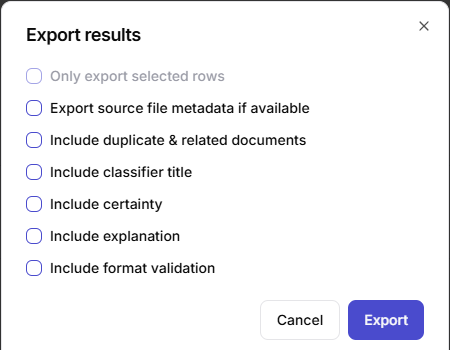
Export results dialog with options
Hoppa prepares the file in the background. Progress appears in a panel in the bottom-right corner, and the file downloads when it is ready. You can keep working, and run several exports at once. The file is named after the session ID, with the date and time.
What the CSV contains
- One row per document, plus a row for each line item, with the name of the document it belongs to.
- A column for each classification, holding the code.
- A column for each search field, holding the value.
- A column for each tag column, holding the tags separated by semicolons.
- Custom columns, and the Coded File Name if you used Rename.
- Your saved edits, which take the place of Hoppa's original values.
Export options
| Option | What it adds |
|---|---|
| Only export selected rows | Exports only the rows you have ticked. Available when rows are ticked. |
| Export source file metadata if available | A metadata column holding the metadata provided by the source system, such as SharePoint columns. |
| Include duplicate & related documents | Columns listing the exact matches, close matches and related documents found for each file, with their scores and sessions. See Document side panel. |
| Include classifier title | A title column next to each classification, alongside its code. |
| Include certainty | A certainty column next to each value column. |
| Include explanation | An explanation column next to each value column. |
| Include format validation | A column next to each value showing whether it passed format validation. |
Export from the workspace
You can also export a session without opening it. On the workspace's Sessions tab, select More actions (the … icon) on the session's row, then Export to CSV. This exports the session's saved results. The options are the same, except that you cannot choose selected rows or classifier titles.