The Workflow tab shows the steps Hoppa runs on each document. Most people only need to read it. For what workflows are and how they relate to the workspace and its sessions, see Workflows.
Open the workflow
- Open the Refinery for a workspace, or the Data Refinery for a session.
- Select the Workflow tab.
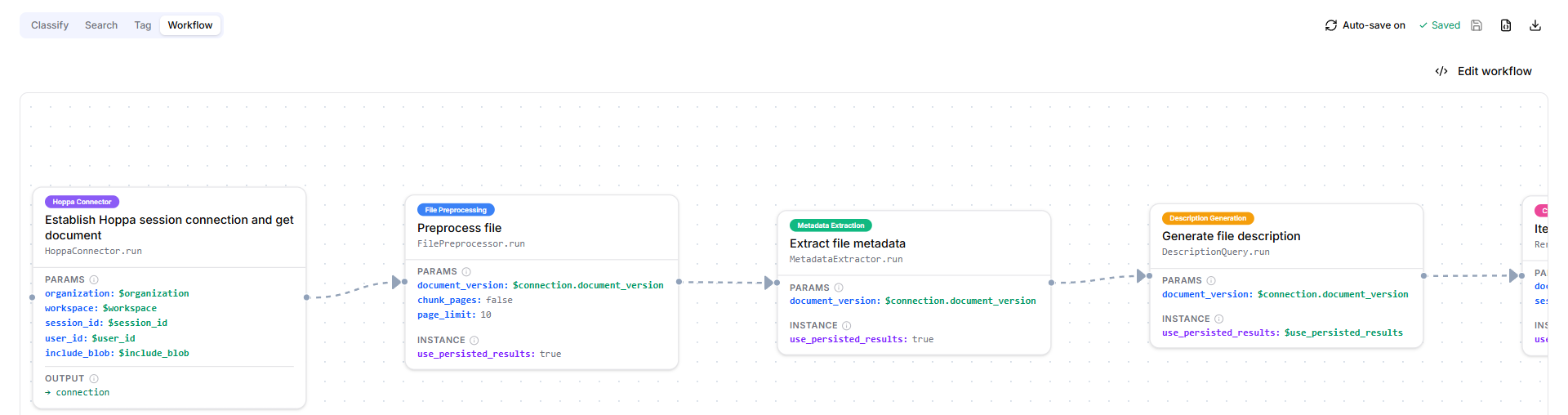
Workflow diagram with step cards labelled by stage
Read the diagram
The diagram reads from left to right.
- Each card is a step. Its title says what the step does, such as Extract file metadata. Under the title is the processor it runs.
- The coloured label names the stage. Steps in the same stage share a colour.
- Arrows show the order. Coloured arrows link steps within a stage. Grey animated arrows link one stage to the next.
- A conditional badge marks a stage that only runs when a condition is met. Hover over it to see the condition.
- A dashed box marks a stage that repeats for each item in a list, such as each sheet in a workbook.
Each card can show these sections. Hover over the information icon next to a section for a short explanation.
| Section | What it shows |
|---|---|
| Template | An expression evaluated when the step runs. |
| Params | The arguments passed to the step. |
| Instance | The settings the processor is set up with. |
| Output | The name the step's result is stored under. |
Steps can also show a retry count, and what happens if the step still fails.
Move around the diagram
- Drag the background to pan.
- Use the + and − buttons in the bottom-left corner to zoom, and the frame button to fit the whole workflow on screen.
Edit the workflow
Advanced
Editing a workflow can stop documents from being processed. Only edit a workflow if you are familiar with the Workbench workflow definition language.
To edit, select Edit workflow. A JSON editor opens beside the diagram, and the diagram updates as you type. Select Save to keep your changes, or Reset to undo them.
Editing a session's workflow breaks its link to the workspace
A session follows its workspace's workflow until someone edits the session's own workflow. After that, changes to the workspace workflow no longer reach the session. Relinking needs a ticket through the support portal. See Workflows.