Organisation settings cover your whole organisation: its subscription, the tokens it has used, and a record of what people have done.
Before you start
Organisation settings are for Admins. Other roles do not see the settings icon.
Open organisation settings
- Go to your organisation's landing page.
- Select the gear icon, Organisation Settings, in the header.
The settings have three tabs down the left: General, Usage and Audit log.
General
If your organisation subscribes to Hoppa through Microsoft Marketplace, the Microsoft Marketplace subscription section shows the subscription's ID, status and activation date. Billing is managed by Microsoft, and Open Azure portal takes you there.
| Status | Meaning |
|---|---|
| Active | The subscription is running. |
| Pending | Microsoft has confirmed the subscription and Hoppa is setting up your organisation. You will get an email when it is ready. |
| Suspended | Microsoft has suspended the subscription, usually because of a payment issue. Resolve it in the Azure portal. |
| Cancelled | The subscription has ended. Your organisation is kept for a short time before it is removed. |
To activate a new Marketplace subscription, see Sign in.
Usage
The Usage tab shows how many tokens your organisation has used. Tokens are Hoppa's unit for measuring the work it does. See Tokens.
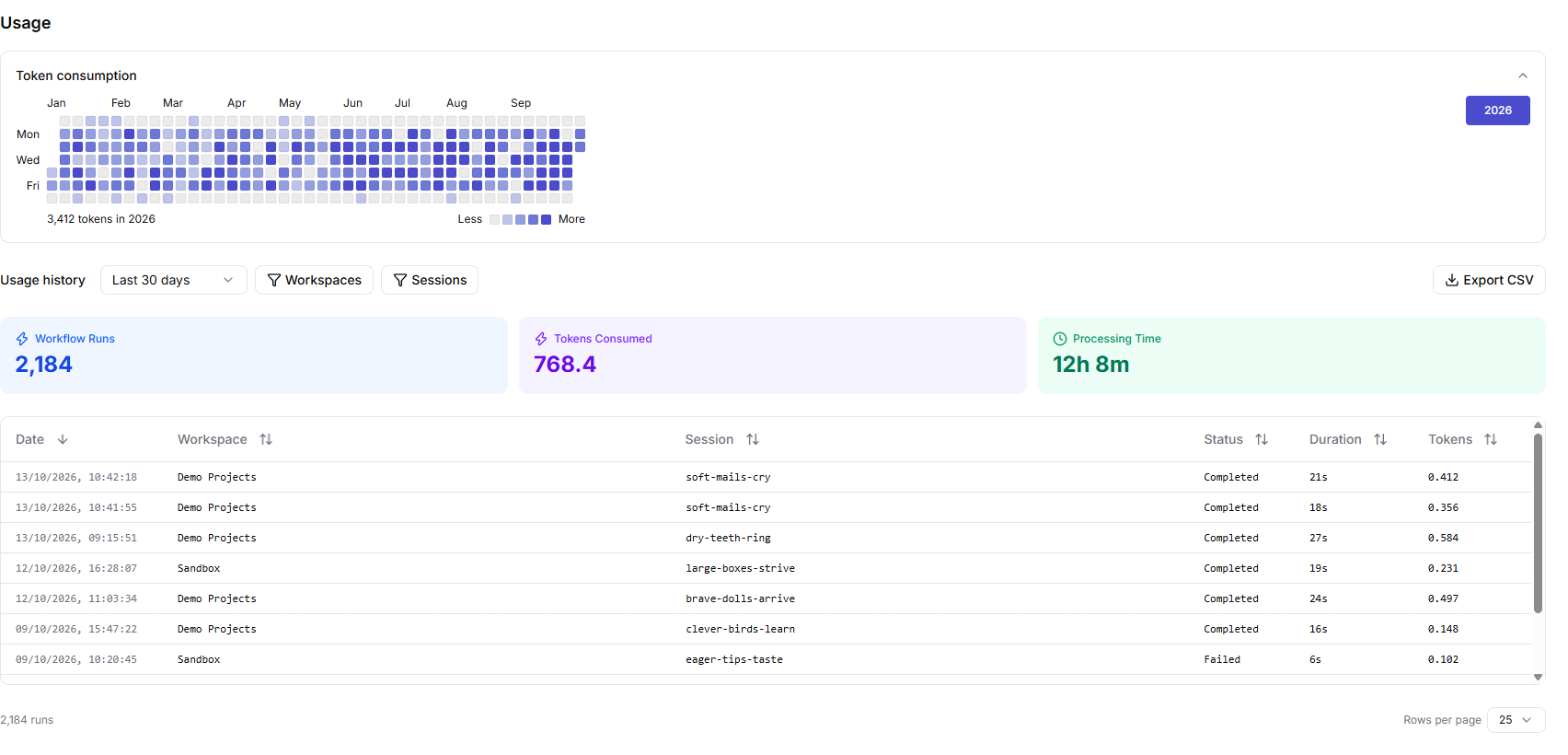
Usage tab with a daily token calendar, totals for the period and a table of workflow runs
Token consumption
A calendar shows tokens used each day of the year, with darker days showing more use. Hover over a day to see its total. Use the year buttons on the right to look at earlier years.
Usage history
Below the calendar, choose a period, such as Last 30 days or This quarter, and optionally narrow it to some Workspaces or Sessions. Hoppa then shows:
- Workflow Runs: how many times a workflow ran.
- Tokens Consumed: the total tokens used.
- Processing Time: the total time spent processing.
- A table of runs, each with its date, workspace, session, status, duration and tokens. Sort by any column.
Select Export CSV to download every run in the table.
Audit log
The Audit log records every action that changes or downloads data, such as creating or deleting sessions, editing results, exporting and writing back. Use it to see who did what, and when.
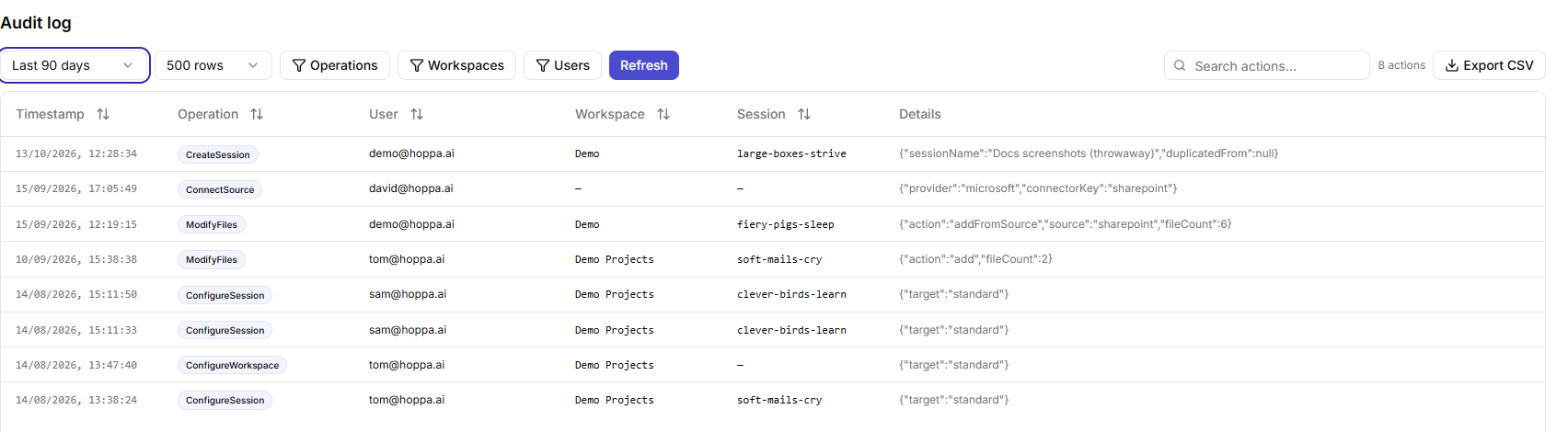
Audit log tab with filters and a table of recorded actions
- Choose a time range, such as Last 7 days, and how many rows to load.
- Select Refresh to load the actions.
- Narrow the list with the Operations, Workspaces and Users filters, or search with Search actions....
Select an action to see its full details. Select Export CSV to download the actions shown.
| Operation | What it records |
|---|---|
CreateWorkspace / DeleteWorkspace |
A workspace was created or deleted. |
ConfigureWorkspace |
A workspace's standard or workflow was changed. |
CreateSession / DeleteSession |
A session was created or deleted. |
ConfigureSession |
A session's settings, standard or workflow were changed. |
ConnectSource |
A data source was connected. |
ModifyFiles |
Files were added to or removed from a session. |
CommitAnalysis |
Files were sent for analysis. |
ModifyResult |
Results were edited or deleted. |
ExportResults |
Results or files were exported. |
WritebackResults |
Results were written back to a source system. |
Note
The audit log loads the most recent actions up to the row limit you choose. If there are older actions beyond that, Hoppa tells you. Raise the row limit or shorten the time range to see them.