Reformat or map a column's values with an AI instruction or a pre-built tool
Clean up data with AI rewrites the values in one column for the rows you choose. Use it to put values into a consistent format, extract part of a value, or map values to Uniclass codes.
Before you start
You need to be an Admin, Manager or Member to run AI clean-up.
Clean-up is available on search field and custom columns.
Clean up a column
- Tick the rows to clean up. Shift-click to tick a range.
- Select the wand icon, Clean up data with AI, in the column heading.
- Type an instruction in the box, for example:
- Return in format DD-MM-YYYY
- Return surname only
- Comma delineate list entries
- Optionally, under Context columns, tick other columns Hoppa should read while cleaning up. You can include classifications, search fields, custom columns, and file information: File content, Description, Metadata, File name and Thumbnail.
- Select Run.
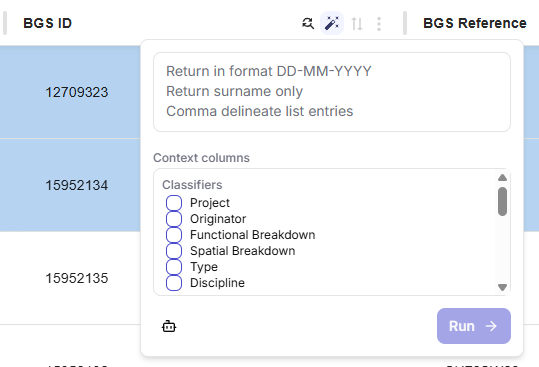
AI clean-up panel with an instruction box and context columns
Each cell shows a spinner while it is processed, then a tick when it is done. Hoppa tells you when the clean-up is complete, or how many rows failed.
Map values to Uniclass
Instead of writing an instruction, you can use the pre-built Uniclass tool.
- Tick the rows, and open the clean-up panel as above.
- Select the robot icon, Use a pre-built tool.
- In Select Tool, choose Uniclass.
- Choose which Uniclass tables to use, or keep All tables.
- Select Run.
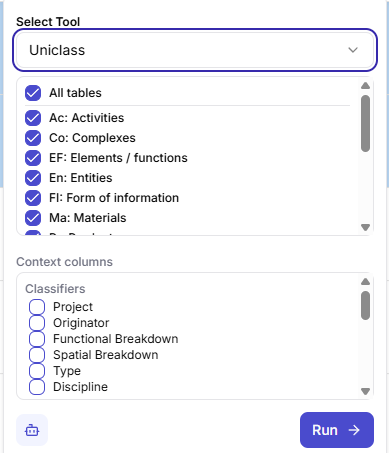
Uniclass tool selected, with a list of Uniclass tables to use
What clean-up changes
- The cleaned value replaces the value in the same column. It is marked with a purple sparkle icon, AI edited.
- The original is kept. Open the column's ⋮ menu and select Undo AI edits to roll back the last run, or Clear AI edits to remove all AI edits in the column.
- Results are saved automatically when the clean-up finishes. This also saves any other unsaved edits you have made, so check your edits before running a clean-up.
Retry failed rows
If some rows fail, a red retry button appears in the column heading. Select it to run the clean-up again for just those rows.