Hoppa's results are a starting point. You can correct any value, and Hoppa keeps track of what has been changed by people and by AI.
Before you start
You need to be an Admin, Manager or Member to edit results.
Edit a cell
Select a cell to edit it. Item Name and Description cannot be edited.
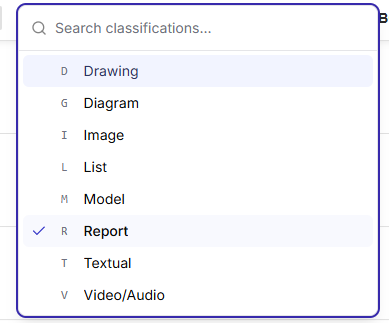
Classification picker open on a cell, listing codes with their descriptions
How you edit depends on the column:
| Column | How to edit |
|---|---|
| Classification | Pick a code from the list. Type to search codes and descriptions. For a nested classification, only codes that belong to the row's parent code are offered. |
| Tag | Add tags from the list, or type a new one and select Add. Select X on a tag to remove it. Backspace removes the last tag. |
| Search field, text | Type the value. Press Enter to finish, or Shift+Enter for a new line. |
| Search field, number, currency or percentage | Type the number. Currency fields also have a symbol picker. |
| Search field, date or date range | Type the date as DD/MM/YYYY, or pick it from the calendar. |
| Search field, Boolean | Choose True or False. |
| Custom column | Type the value. |
Press Escape to cancel an edit. Edited values show a pencil icon.
Save your edits
Edits are not saved until you select Save. If you try to leave the page with unsaved edits, Hoppa asks you to confirm.
The menu next to Save has three options:
| Option | What it does |
|---|---|
| Save edits | Saves your edits. |
| Clear unsaved edits | Discards edits you have not saved yet. |
| Delete all edits | Permanently deletes every saved edit on the session, by every user and by AI clean-up. The original analysis results remain. This cannot be undone. |
To undo an edit to one cell or column after saving, right-click the cell, or open the column's ⋮ menu, and select Clear user edits.
Edit many rows at once
- Tick the rows to change. Shift-click to tick a range.
- Select Bulk edit.
- Fill in only the fields you want to change. Fields you leave blank are not changed.
- Select Submit.
- Select Save.
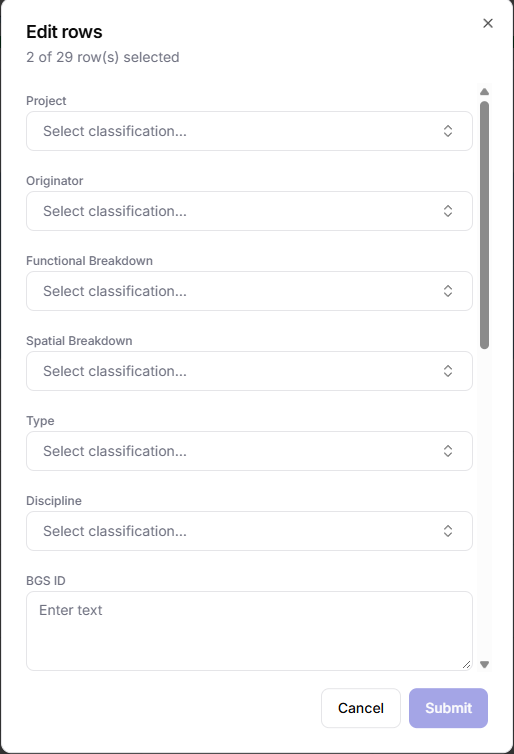
Edit rows dialog with a field for each column
For tag columns, Bulk edit has separate Add tag and Remove tag pickers, so you can add or remove one tag without affecting the others.
Find and replace
Find and replace works on one column at a time.
- Select the find and replace icon in the column heading. It is on classification, search field and custom columns.
- Type what to find. Matches are highlighted, and the arrows move between them.
- Type the replacement, then select Replace for the current match or All for every match.
- Select Save.
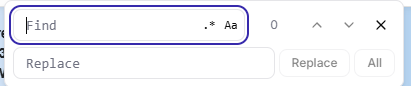
Find and replace bar with Find and Replace boxes
- Aa makes the search match case.
- .* treats what you type as a regular expression.
- Only rows that pass the current filters are searched.
- In classification columns, find and replace works on the codes.
Delete a column's results
To clear the values in one column, open the column's ⋮ menu and select Delete column results in selected rows or Delete column results for all rows, then confirm. This removes both Hoppa's values and any edits in that column.