Beta
The Asite UK connector is in beta. If you have problems, raise a ticket through the support portal.
Connect Asite UK to analyse documents in your Asite workspaces where they are stored. Unlike SharePoint and Autodesk, Asite does not use a separate sign-in page. You enter your Asite username and password in Hoppa, and Hoppa stores them securely so you only need to do this once.
Before you start
- You need permission to connect data sources. If the Asite UK card shows a Pro Tier badge, connecting to external systems is not enabled for your account. Contact the Hoppa team.
- You need an Asite UK username and password with access to the workspaces you want to use.
Connect your account
- Open the session.
- In the sidebar, select + next to Data sources.
- Select Asite UK, then select Connect & configure.
- Enter your Asite username and Asite password.
- Select Connect.
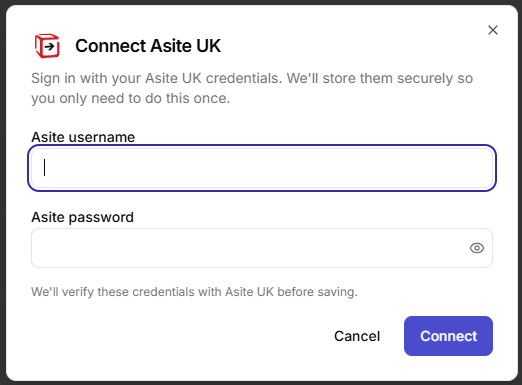
Connect Asite UK dialog with username and password fields
Hoppa checks your details with Asite before saving them. If Asite rejects them, Hoppa shows The credentials you entered were rejected. Check and try again.
If your account is already connected, the card shows Account connected and the button reads Continue.
Select files and folders
The left-hand panel shows your Asite workspaces.
- Open a workspace to load its folders.
- Open a folder to load its documents.
- Tick the documents you want, or tick a folder to select every document loaded inside it.
- Select Save.
Search, saving and removing files work the same way as for SharePoint. See Connect SharePoint.
If your password changes
When your Asite password changes, Hoppa can no longer sign in for you. The connector shows Needs reconnection. Enter your new password to reconnect. See Reconnect an expired connection.